Knowledge base
/
Getting started
Knowledge Base
Everything you need to know about using MentalHappy
How to Create a Group | Start Here — MentalHappy
🚀 Quick Start Guide
This guide walks you through launching your group on MentalHappy.
Follow the steps in order — and don’t skip Stripe setup (covered on Page 2). Your group can’t accept payments until Stripe is connected and verified.

📍 On this page

Step 1: Register or Log In Step 2–9: Setup Flow Step 10: Launch Your Group
🔒 Hidden logic (important)
  • A Member can also create a group by clicking “Start a Group”.
  • A Group Leader can join other groups as a participant.
  • Switching roles doesn’t remove existing access, but permissions change based on your active role context.

📌 End-to-end flow

Colored steps are on this page. Greyed steps continue on Page 2 & Page 3.

Register Role Selection Onboarding Plan Selection Payment Group Setup Pricing Preview Launch Stripe Setup Announce Invite Verify

✅ Step-by-Step Guide (Steps 1–10)

Each step explains what to do, what happens behind the scenes, and why it matters.
1
Register or Log In
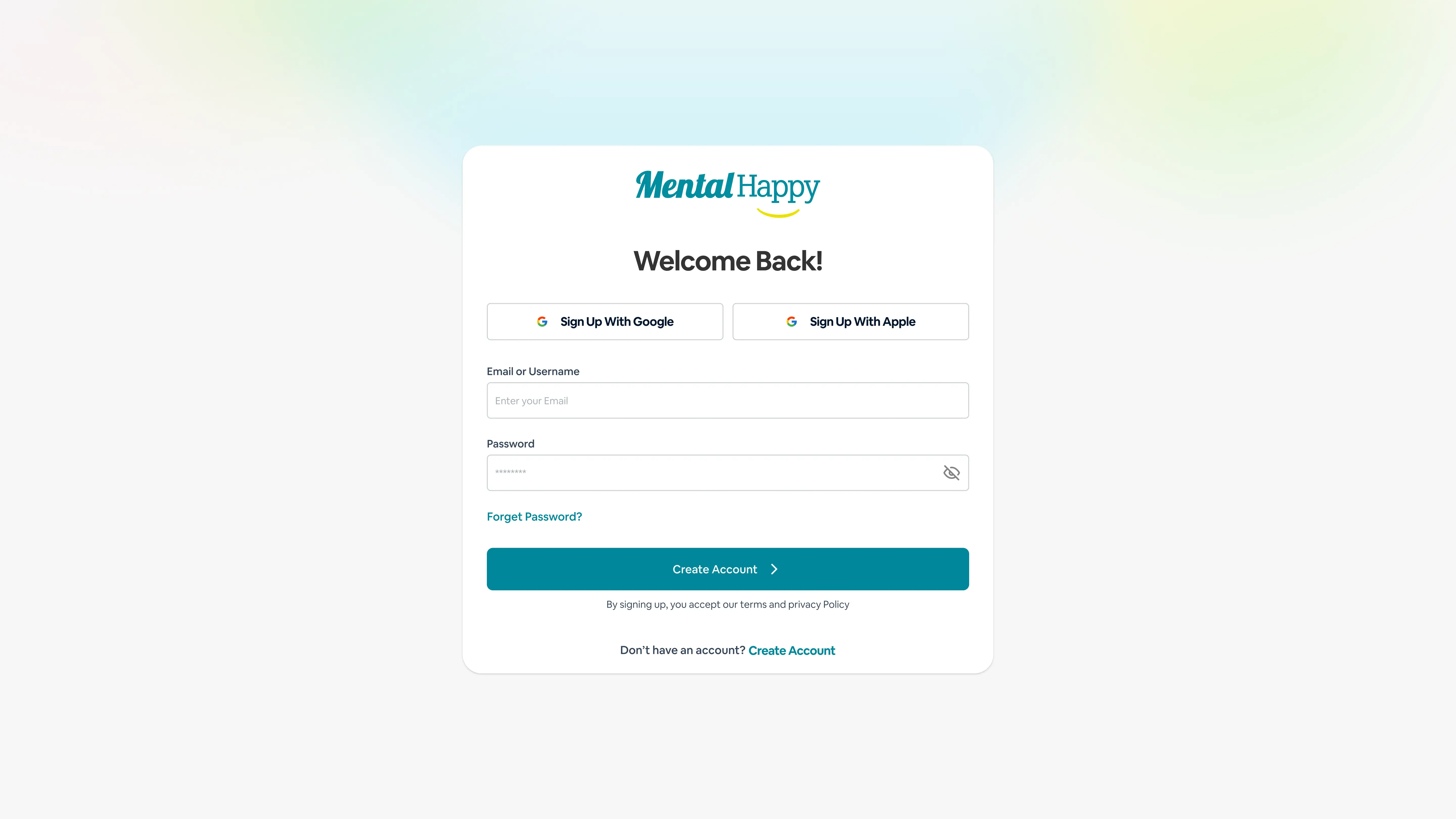
Creating or accessing your account so the platform can identify you.

👉 What to do
  • Click “Start a Group”
  • Sign up or log in
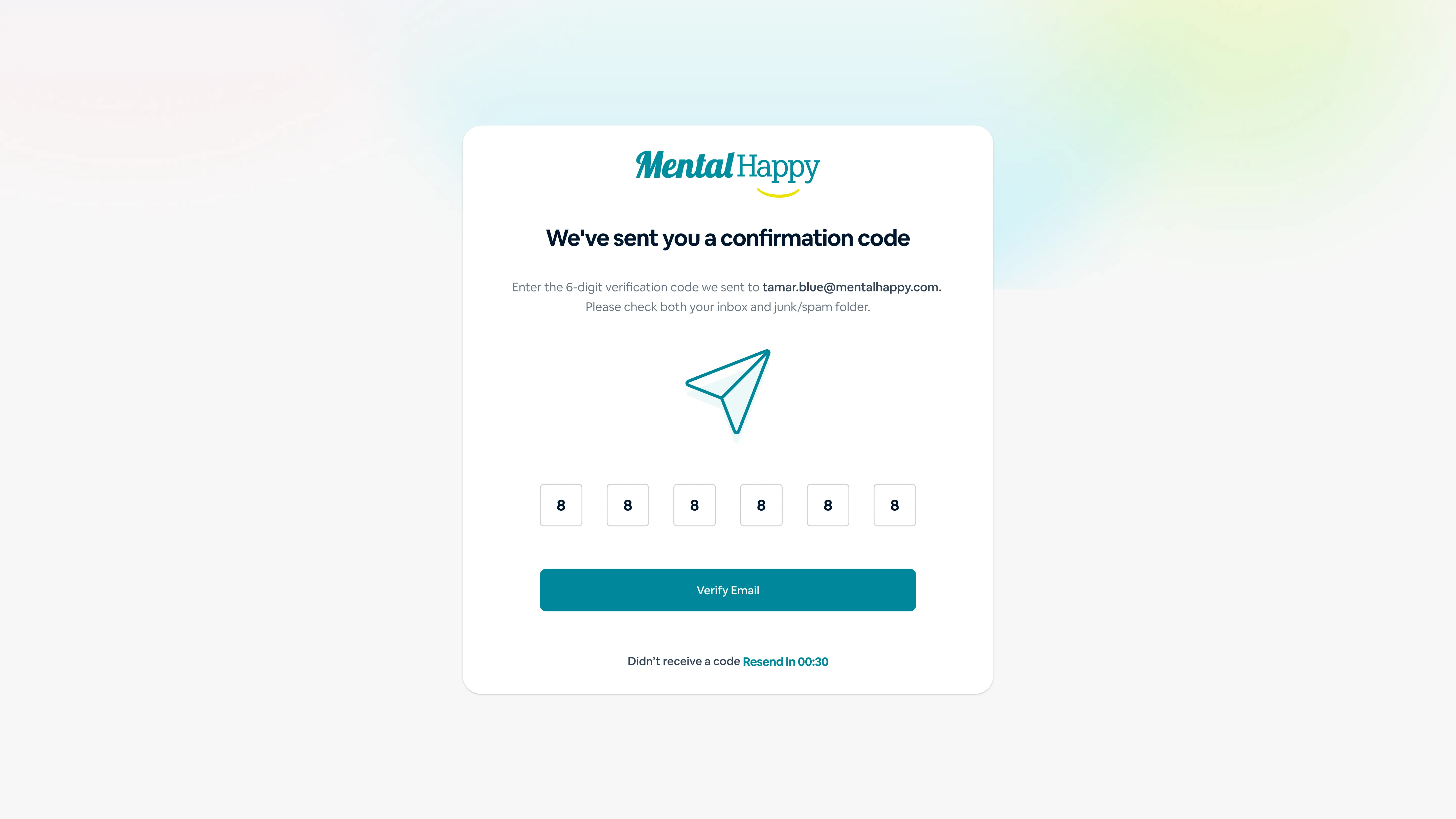
  • Verify your email
⚙️ What happens in the system
  • Your account is authenticated
  • OTP is validated (time-sensitive)
  • Your intent to create a group is saved
🎯 Why this matters

This ensures your identity is verified and your progress is not lost.

✨ Tips
  • Use the same email for Stripe to avoid payout issues
  • Complete OTP quickly before it expires
Mental Happy login page screen Mental Happy signup page screen Mental Happy OTP verification page screen
2
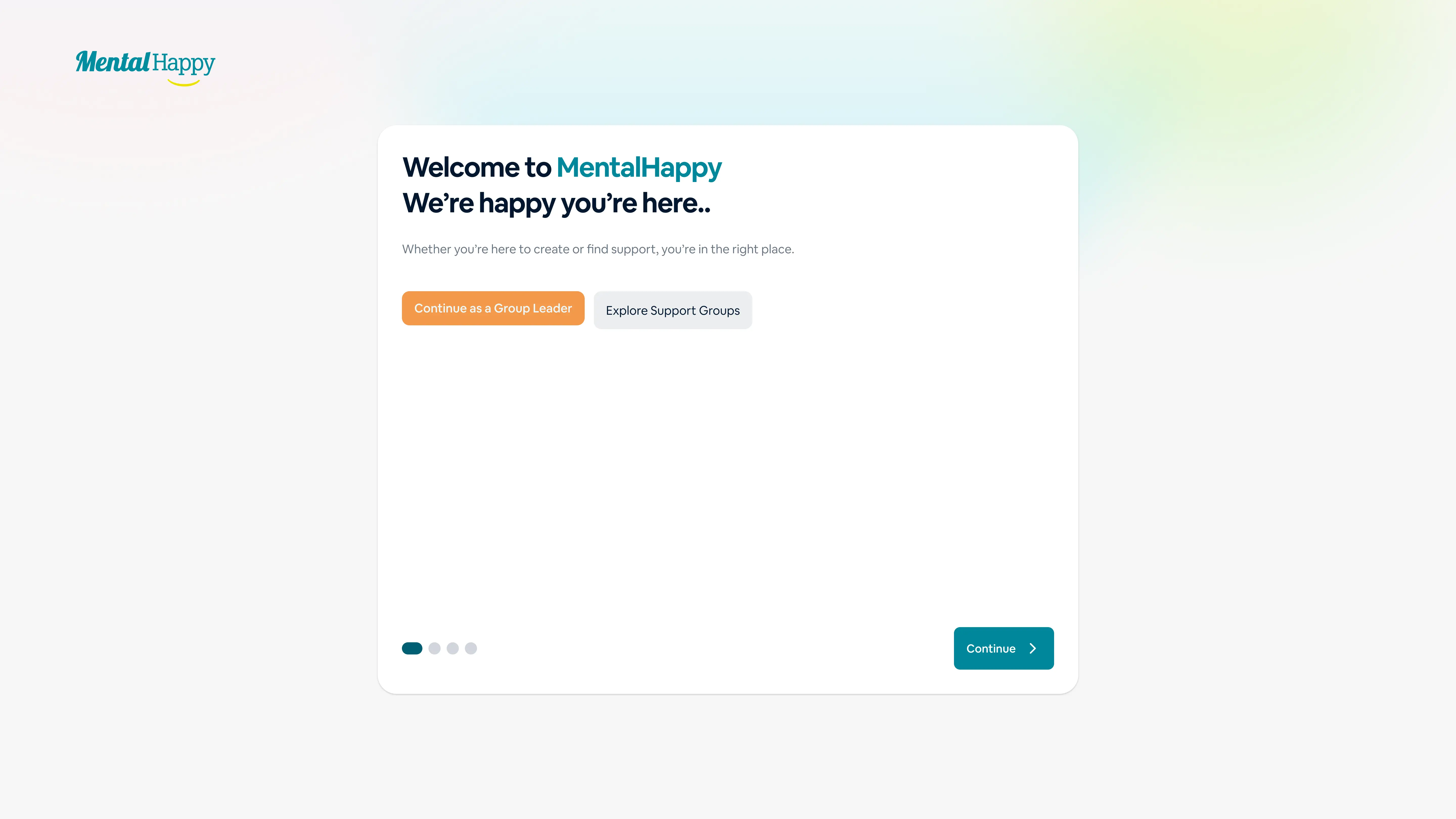
Choose Your Role

Selecting how you want to use the platform.

👉 What to do
  • Select Group Leader
⚙️ What happens in the system

You get access to:

  • Create and manage groups
  • Set pricing
  • Manage members
  • Receive payouts
🎯 Why this matters

Without selecting Group Leader, you won’t see group-creation features.

🔒 Hidden logic
  • Even if you start as a Member, clicking “Start a Group” enables Group Leader capabilities.
✨ Tips
  • Double-check your role to avoid missing features later
Mental Happy welcome screen for group leader onboarding
3
Complete Onboarding

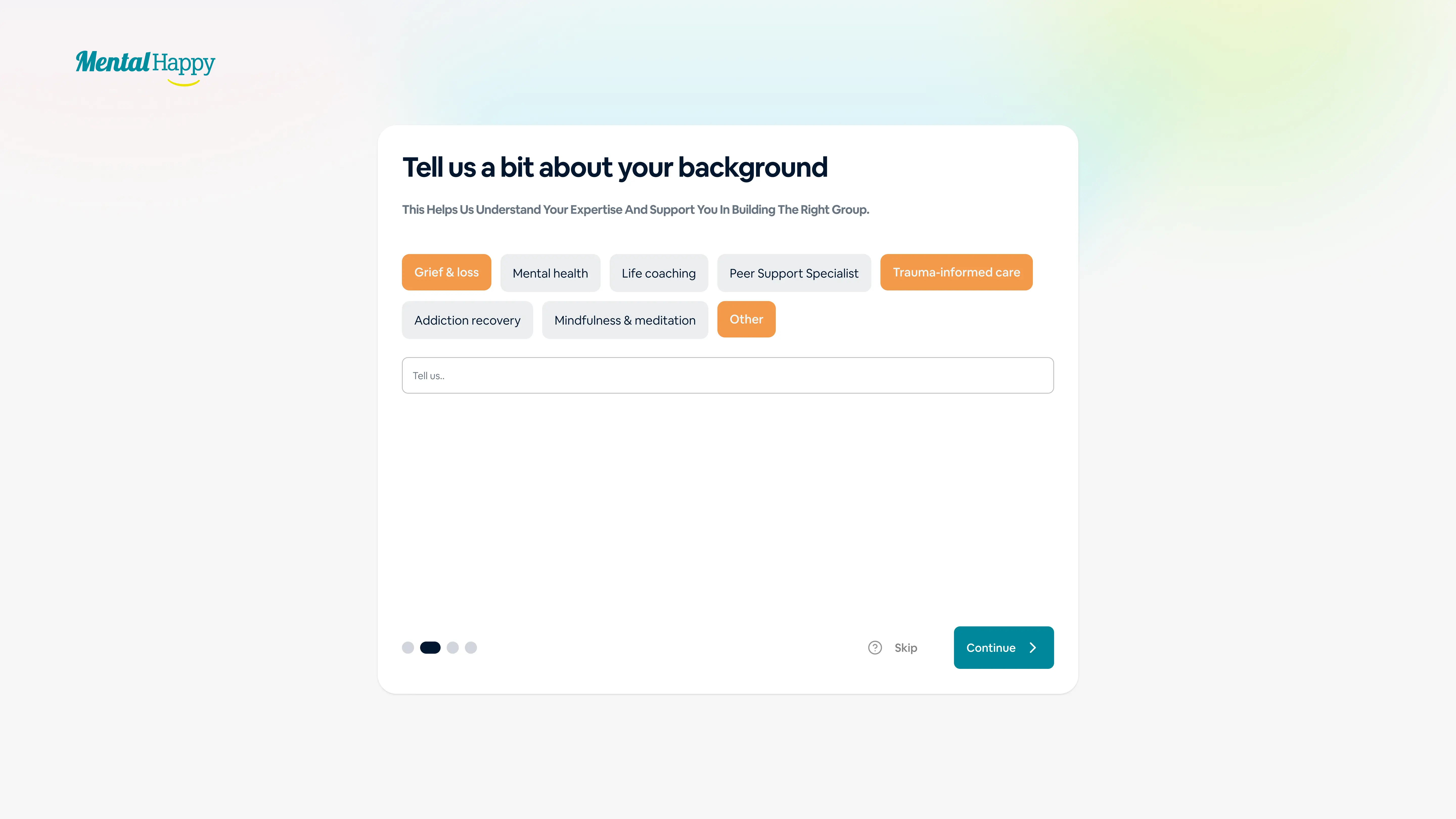
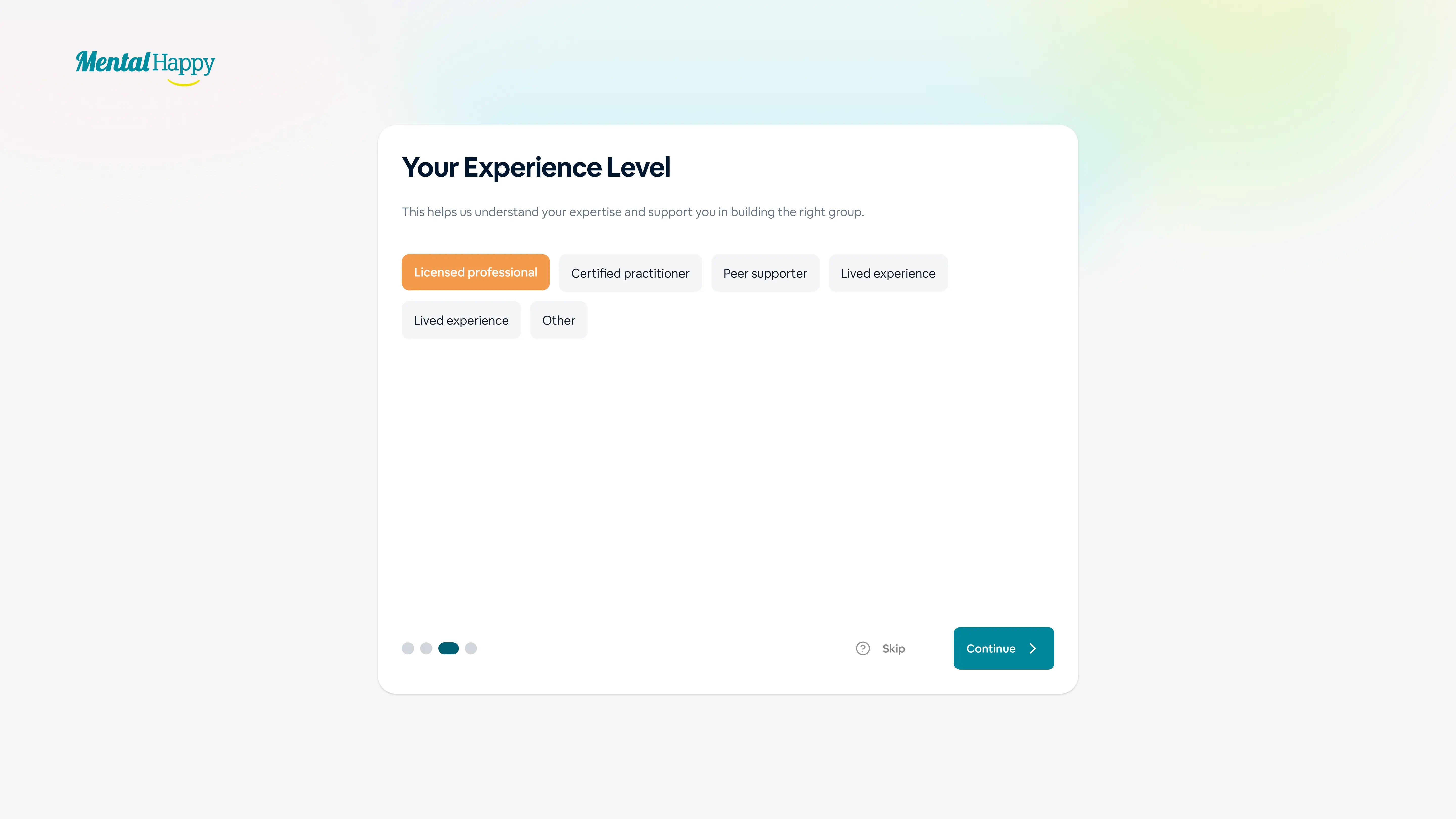
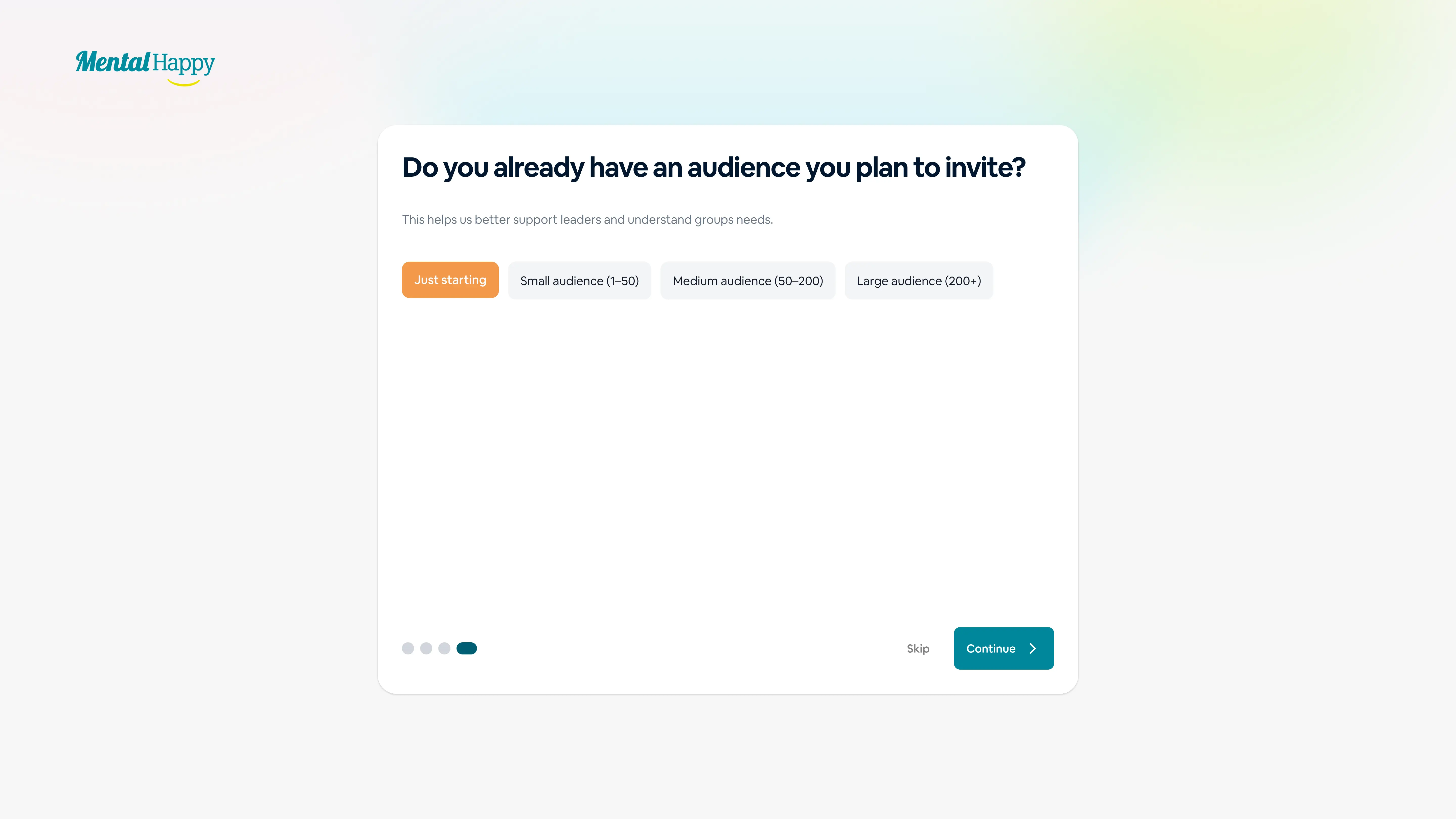
A guided setup experience where MentalHappy learns about your goals, experience, and intended group type. It appears right after role selection for first-time group creators.

👉 What to do
  • Answer short questions (experience, goals, audience)
⚙️ What happens in the system
  • Your profile is configured
  • The platform may personalize recommendations
  • You’re routed to the Plan Selection page
🎯 Why this matters
  • Helps tailor your experience
  • Speeds up group setup
  • Improves trust signals for members
✨ Tips
  • Answer honestly — it can influence how your group is positioned
  • This step happens only once
MentalHappy onboarding background selection screen MentalHappy onboarding experience level selection screen MentalHappy onboarding audience size selection screen
4
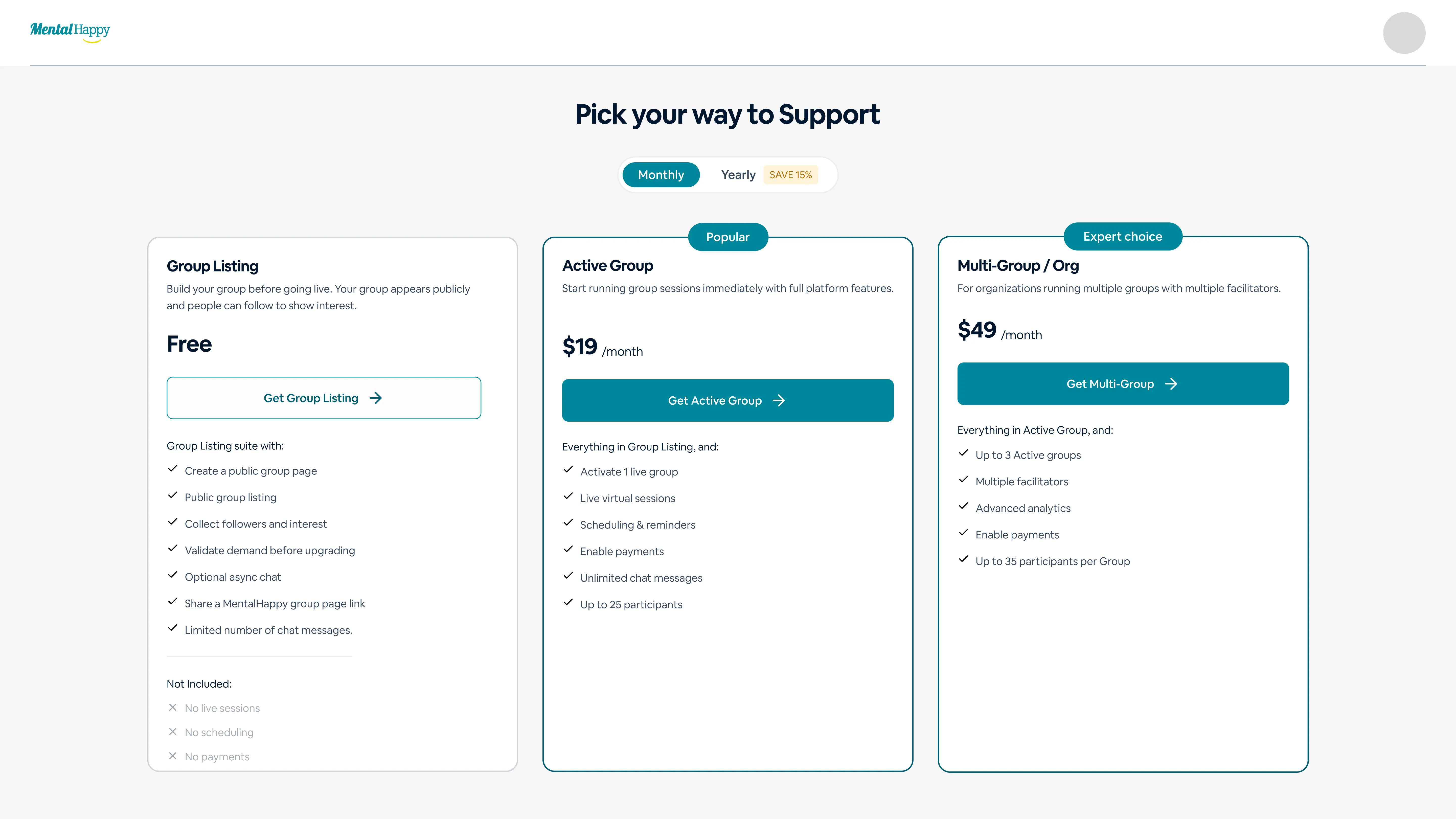
Choose Hosting Plan

Selecting how you want to run your group on MentalHappy.

👉 What to do — choose a plan
Group ListingFree
  • Test your idea
  • Build member interest
Active Group$19 / month
  • Run sessions
  • Accept payments
  • Manage members
Multi-Group$49 / month
  • Manage multiple groups
  • Add facilitators
⚙️ What happens in the system
  • Listing Plan: group is visible as a Listing; users can follow; no sessions or payments
  • Active Plan: full functionality enabled — sessions + payments available
  • Multi-Group Plan: multiple active groups allowed; advanced features unlocked
🎯 Why this matters

Your plan directly controls what your group can do.

🔒 Hidden logic
  • You can upgrade later without losing your group data
  • Listing groups are visible but not monetizable
✨ Tips
  • Start with Listing if you’re validating demand
  • Upgrade when you’re ready to monetize
MentalHappy hosting plan selection screen
5
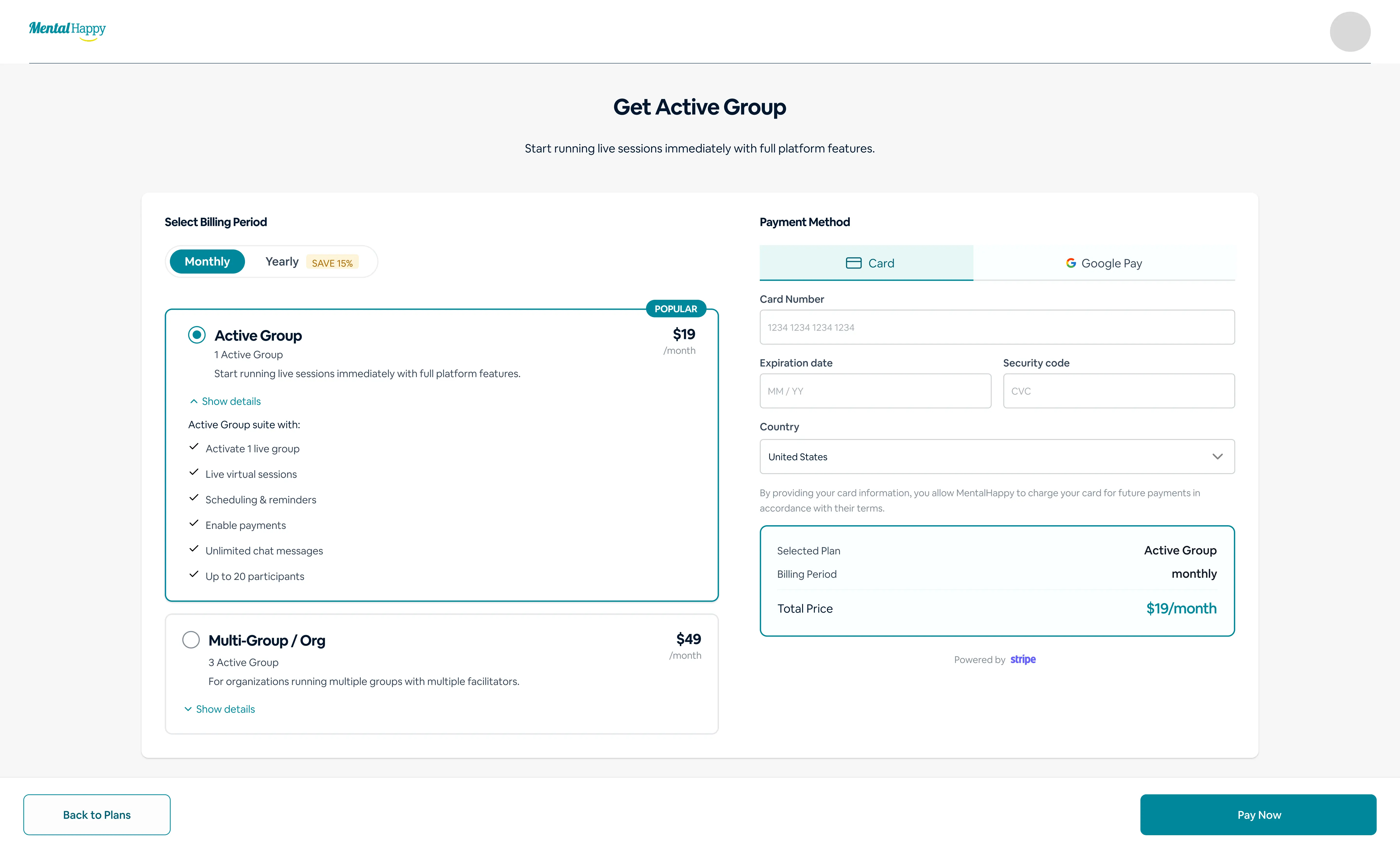
Complete Payment (If Required)

Activating your selected plan.

👉 What to do
  • Enter payment details
  • Confirm subscription
⚙️ What happens in the system
  • On success: a Draft group is created
  • On failure: you remain on the payment screen
🎯 Why this matters

Without successful payment, paid features remain locked.

✨ Tips
  • Do not refresh during payment
  • Retry if payment fails
MentalHappy subscription checkout screen
6
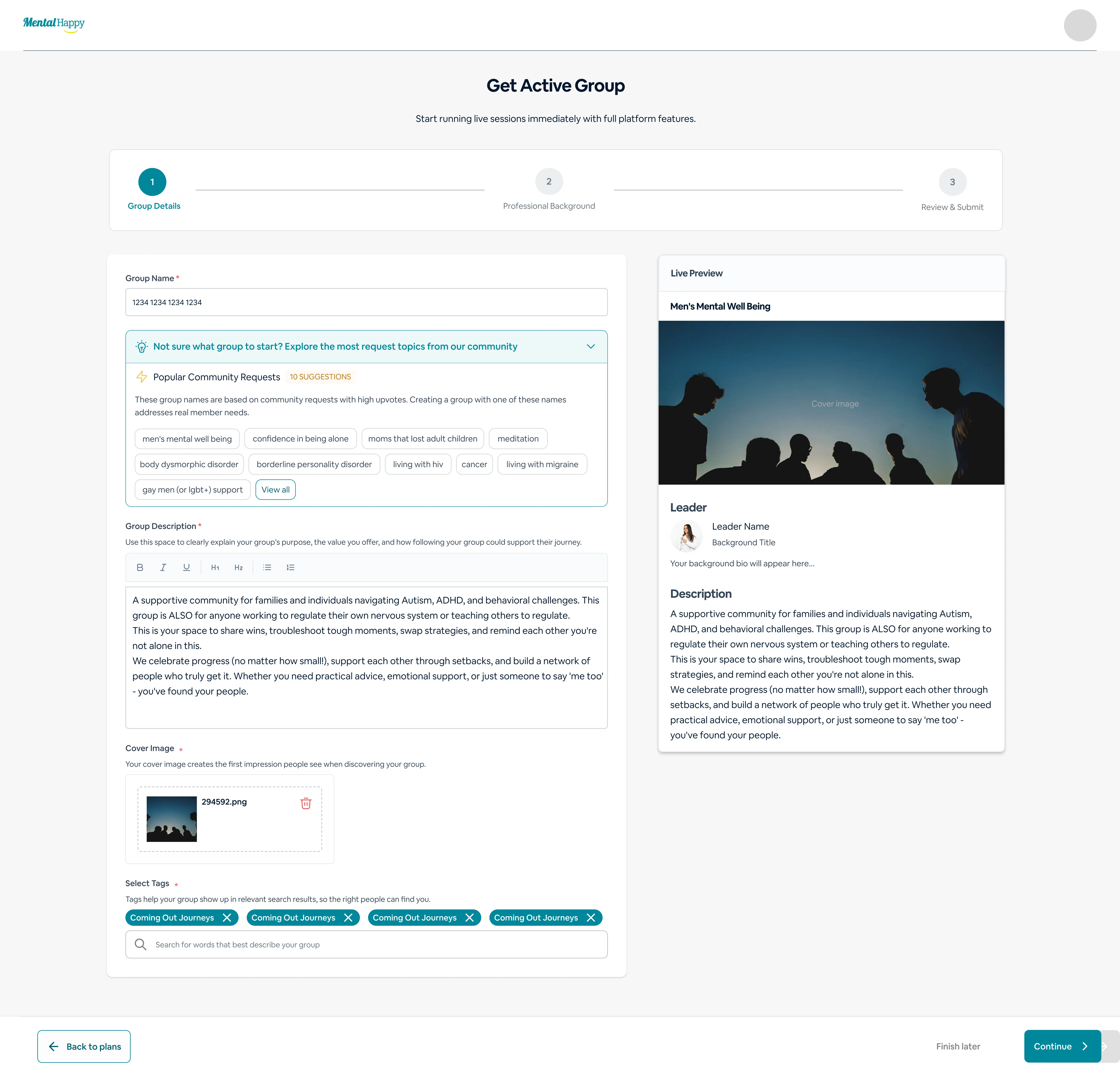
Create Group Details

Building your group’s public identity.

👉 What to do — fill in
  • Group name
  • Description
  • Schedule
  • Guidelines
  • Tags / categories
  • Cover image
  • Intro video (optional)
  • Host details
⚙️ What happens in the system
  • Group is saved as Draft
  • Not visible publicly
🎯 Why this matters

This is what users see before joining.

🔒 Hidden logic
  • Incomplete groups may reduce visibility in discovery
✨ Tips
  • Use clear, benefit-driven descriptions
  • Add visuals to increase trust
MentalHappy create group details form screen
7
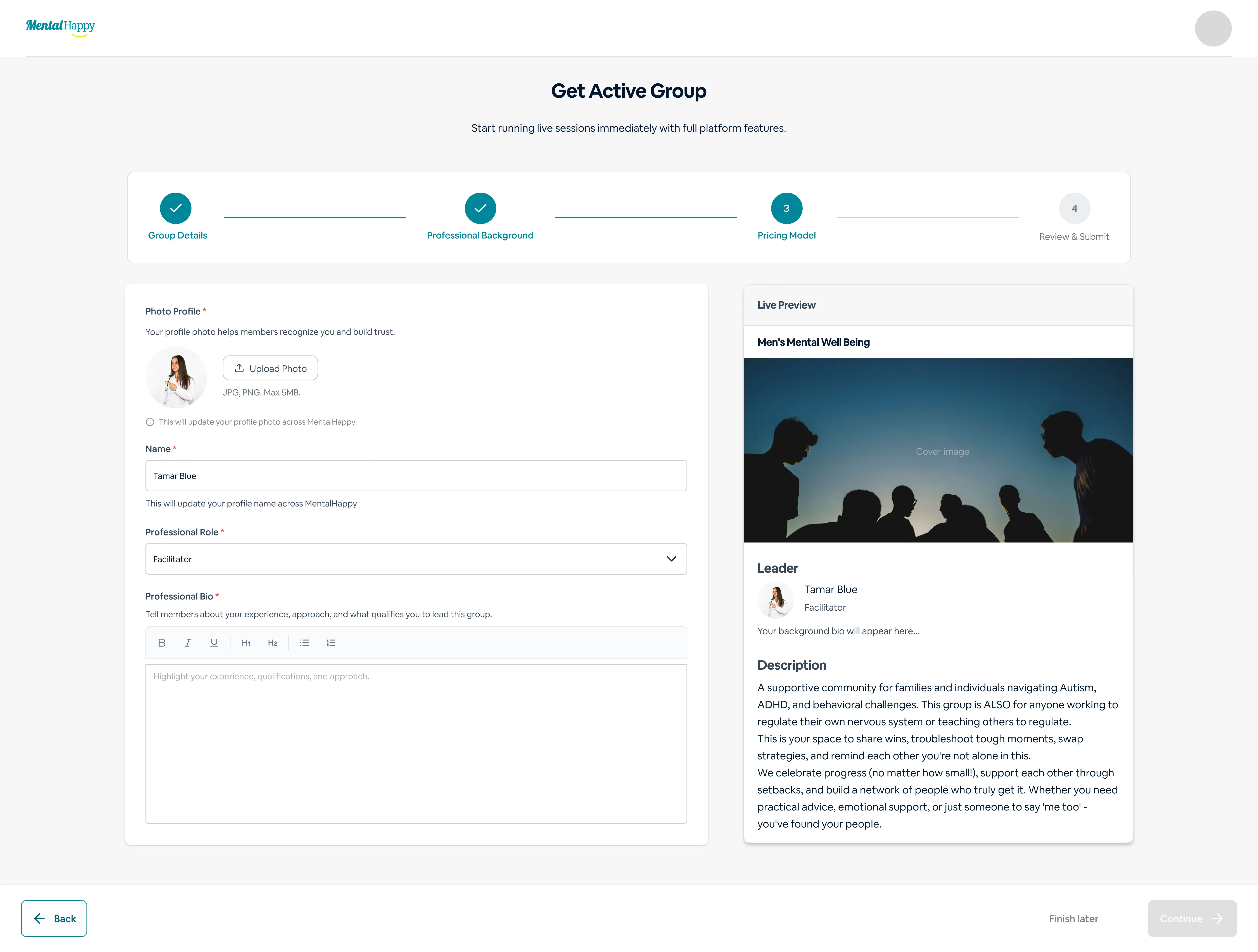
Add Professional Bio

Showcasing your credibility as a group leader.

👉 What to do
  • Add your experience and background
⚙️ What happens in the system
  • Displayed on your group page
🎯 Why this matters

Builds trust and increases conversions.

✨ Tips
  • Highlight relevant experience
  • Keep it concise but credible
MentalHappy professional bio section on active group page
8
Set Membership Pricing

Defining how members will access your group.

👉 What to do — choose one
Free
Donation
Monthly subscription
One-time payment
⚙️ What happens in the system
  • Only one pricing model is active
  • Applies to new members
  • Platform fee applied
🎯 Why this matters

Pricing impacts conversion and retention.

🔒 Hidden logic
  • Changing pricing affects new users only, not existing members
✨ Tips
  • Start simple (Free / low-cost)
  • Avoid frequent pricing changes
MentalHappy membership pricing options screen
9
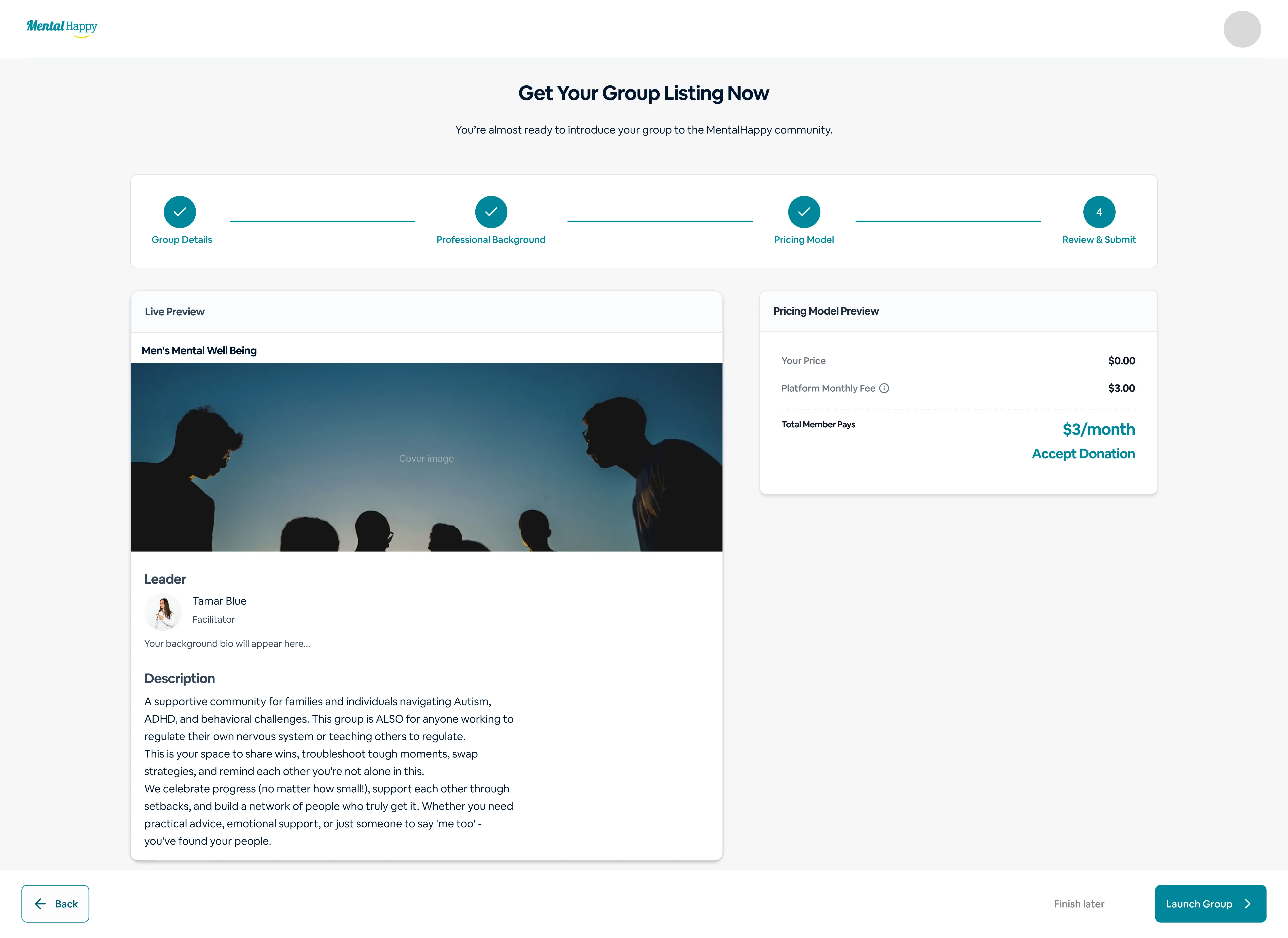
Preview Your Group

Reviewing your group before going live.

👉 What to do
  • Check all details
⚙️ What happens in the system
  • Validates setup
  • Shows final preview
🎯 Why this matters

Prevents errors before launch.

✨ Tips
  • Double-check pricing and schedule
MentalHappy preview your group review and submit screen
10
Launch Your Group 🚀

Making your group live on the platform.

👉 What to do
  • Click “Launch Group”
⚙️ What happens in the system
  • Draft → Listing / Active
  • Group becomes visible
  • Shareable link generated
🎯 Why this matters

Your group is now discoverable.

MentalHappy launch your group screen