This guide walks you through updating your group details using the Edit Group Info feature. Keeping information updated improves discoverability, trust, and member engagement.
📍 What you can update
Edit Group Name→Update Description→Update Leader Bio→Change Schedule→Update Guidelines
🎓 What you’ll learn
How to access and edit group details
How to update description, images, and media
How to modify Category Tags and Community Guidelines
How to set meeting expectations
How to update your Professional Background
🧠 Key concepts (understand this first)
⚙️ What is Edit Group Info?
It’s your central control panel to:
Update all group-facing information
Improve how your group appears in Explore
Build trust with potential members
✨ Why updating details matters
Improves search visibility (SEO within Explore)
Increases conversion (views → joins)
Sets clear expectations for members
⚠️ Important — before you start
Only the Group Leader can edit group details.
Changes apply to both Listing and Active Groups.
Updates reflect immediately after saving.
Editing details does NOT affect pricing or privacy.
📌 End-to-end flow
My Groups→Select Group→About Tab→Edit Group Info→Update Fields→Update Changes
✅ Step-by-Step Guide
Each step explains what to do, what happens in the system, plus tips and the hidden logic behind it.
1
Go to Group Page
Opening your group’s About tab to start editing.
👉 What to do
Click My Groups from the top navigation
Select your group
Open the About tab
⚙️ What happens in the system
Group profile loads
Current details are displayed
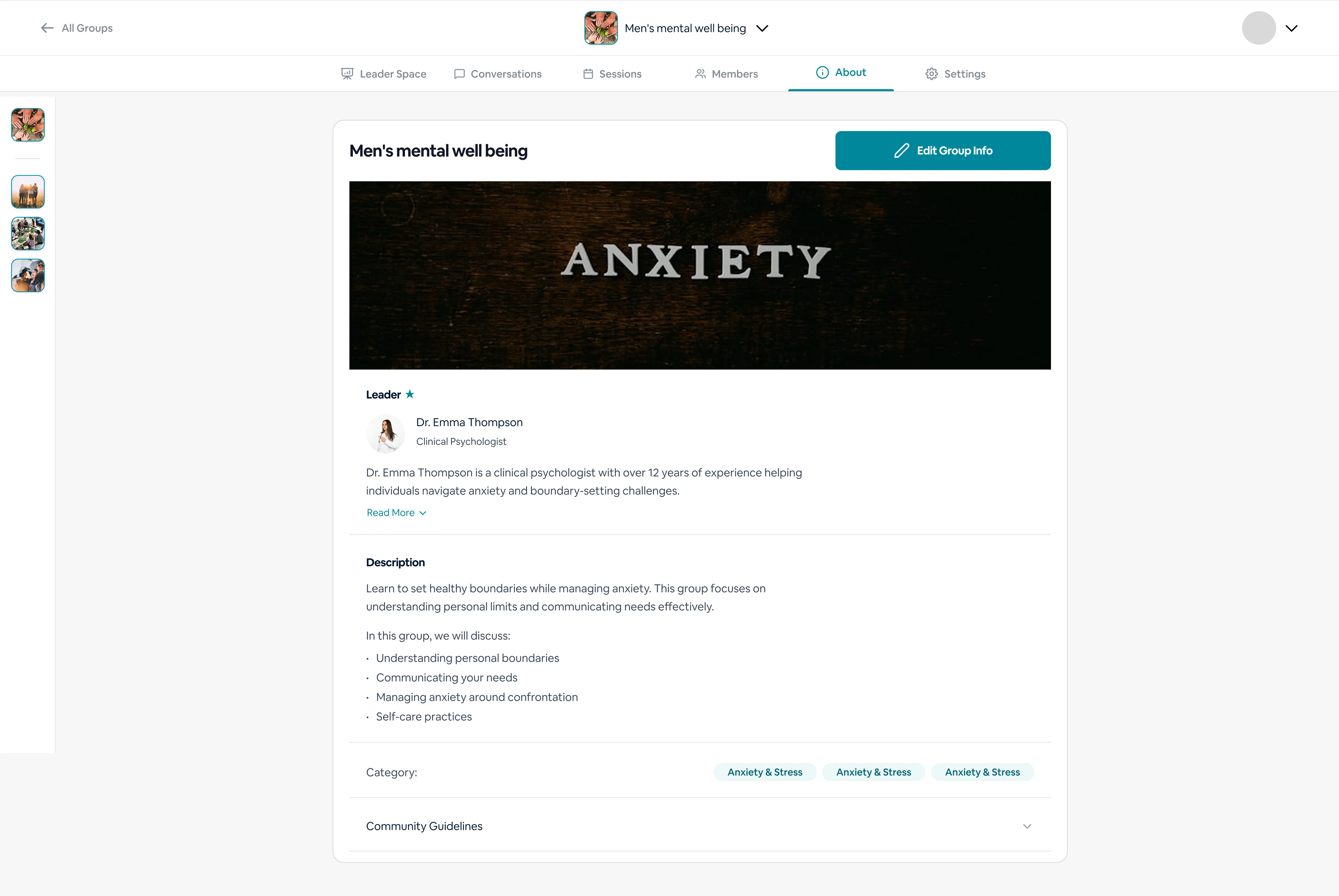
Edit Group Info button is visible (leader only)
The group About page, with the Edit Group Info button shown to leaders.
✨ Tips
Review existing content before editing
🔒 Hidden logic
Small improvements (title, description) can significantly impact conversions
2
Open Edit Group Info
Launching the editable form for all your group fields.
👉 What to do
Click Edit Group Info
⚙️ What happens in the system
Edit form opens
All fields become editable
Existing data is pre-filled
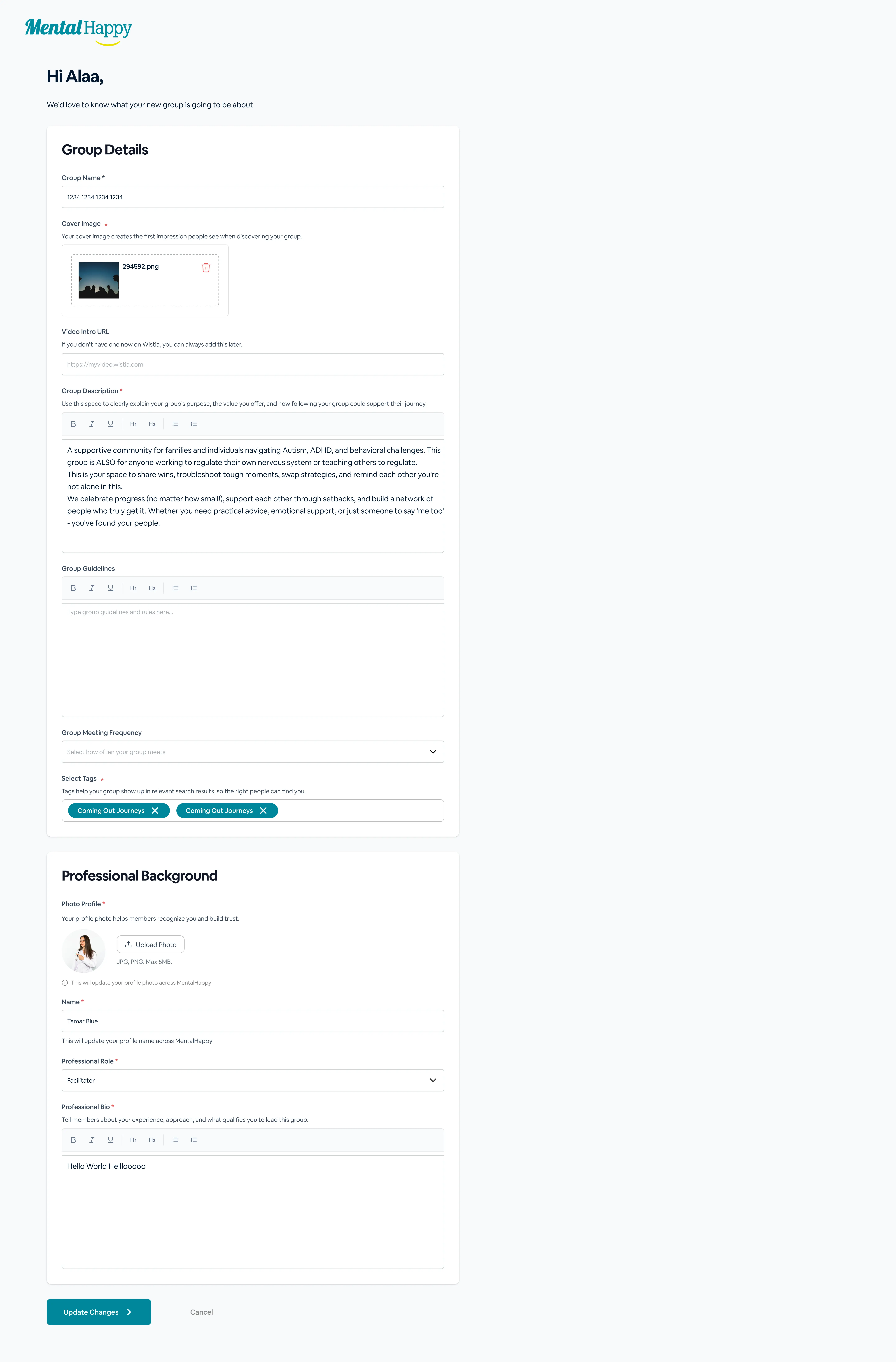
The full Edit Group Info form — group details, community guidelines, and category tags all appear on this screen (covers Steps 3 and 4 below).
✨ Tips
Treat this as your central content dashboard
🔒 Hidden logic
Pre-filled data helps maintain consistency — edit carefully
3
Update Group Information
Refreshing your name, visuals, and description.
👉 What to do — update
Group Name
Cover Image
Video URL (optional)
Group Description
⚙️ What happens in the system
New content replaces old content
Media updates instantly
Description updates on the About page
These fields appear in the Edit Group Info form shown in Step 2 above.
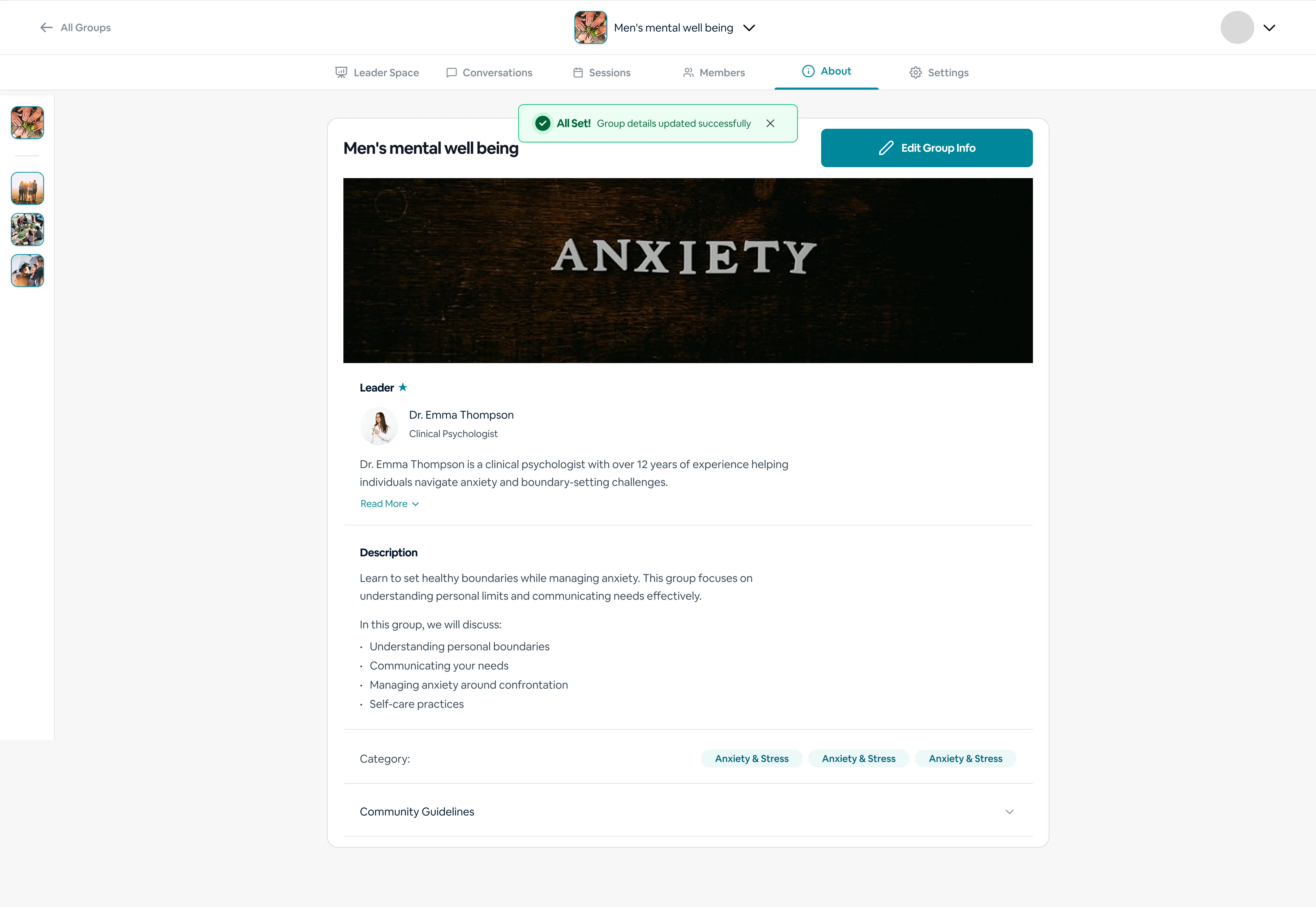
The success message confirming your group details were saved.
✨ Tips
Double-check before saving
🔒 Hidden logic
Frequent edits may confuse returning users
🔒 Hidden Logic & Clarifications
Content quality directly impacts discoverability and joins
Tags influence search ranking inside Explore
Profile credibility affects trust decisions
Visuals (cover + video) improve engagement
📌 What Happens Next
Updates appear instantly on the group page
Changes reflect in Explore (if Public)
Improved content increases joins and engagement
✅ Best Practices
Keep descriptions updated
Use accurate tags
Refresh visuals periodically
Maintain a strong leader profile
⚠️ Common Mistakes
Outdated descriptions
Incorrect or excessive tags
Weak or missing guidelines
Low-quality visuals
🛠️ Troubleshooting
Changes not visible
Refresh the page or confirm the save completed.
Image not updating
Re-upload using a supported format.
Edit option missing
Ensure you are logged in as the Group Leader.
💬 Final Note
Keeping your group details updated ensures members clearly understand your group’s purpose, structure, and value. A strong About page, clear guidelines, and a credible leader profile help attract the right members and build a trusted, engaged community.